Digital Canvases and Palette Shading in Drawing & Coloring
Drawing & Coloring offers a welcoming digital art studio designed for relaxation, creative expression, and stress-free painting. Built for artists of all skill levels, the app features an extensive gallery of clean, black-and-white line art templates spanning wildlife, marine creatures, sports cars, fairy-tale castles, and animated cartoon characters. You can color within pre-drawn boundaries using smart fill tools or open a blank digital canvas to sketch original artwork from scratch.
Unlike competitive arcade games with ticking timers and punishing failure states, Drawing & Coloring is entirely open-ended. You set the pace. Whether you want to spend two minutes filling a cartoon puppy with sunny yellow hues or spend half an hour blending gradients across an elaborate dragon scene, the studio provides the digital tools you need without clutter or complexity.
Balancing the Flood-Fill Bucket and Freehand Brushes
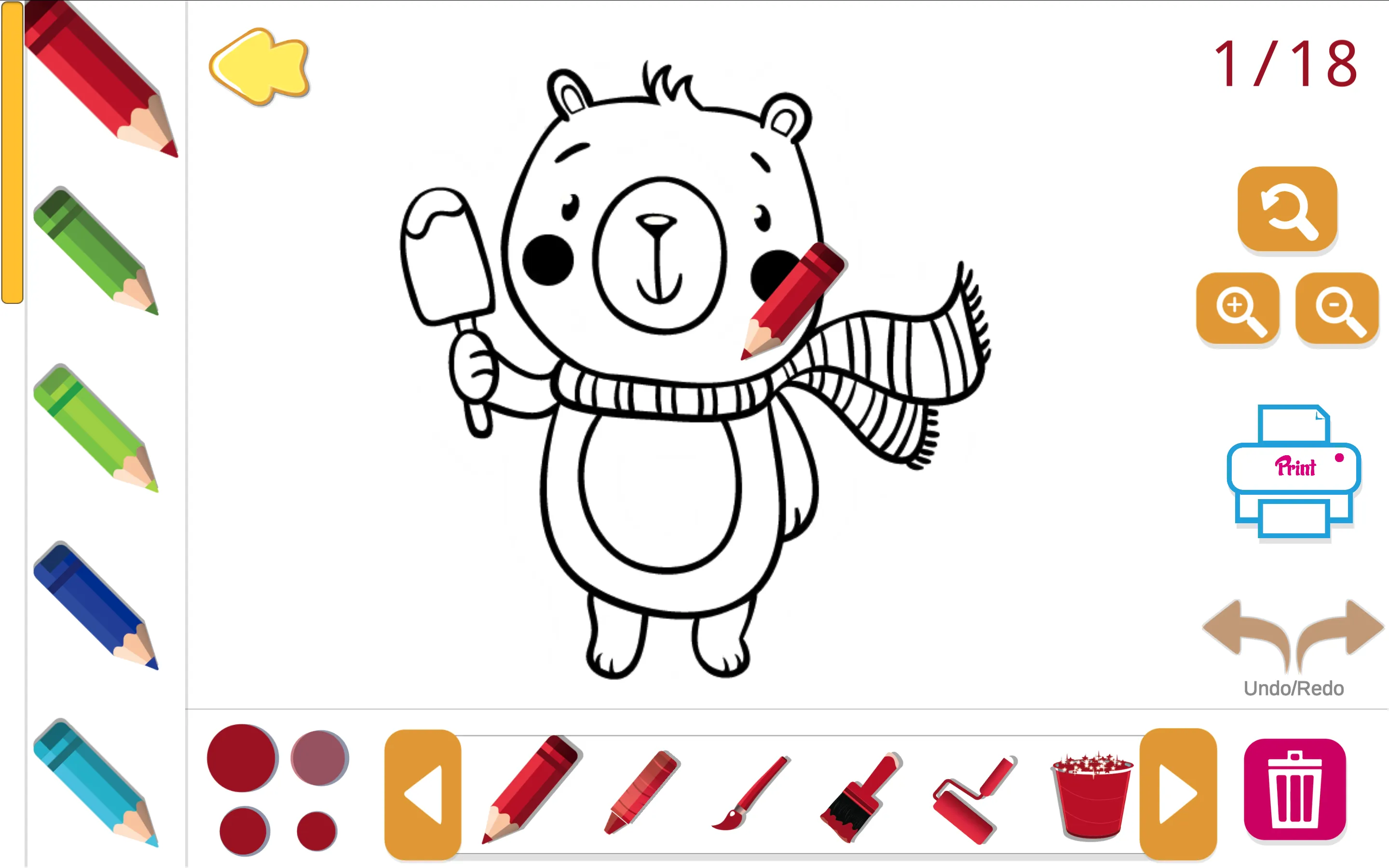
Drawing & Coloring equips you with two core painting modes: the flood-fill paint bucket and freehand artistic brushes. Knowing when to switch between them will elevate your digital artwork:
- The Paint Bucket Tool: Tap or click inside any closed outline to instantly flood that entire zone with solid color. Use the bucket for blocking out large surface areas: blue skies, green lawns, animal fur coats, and vehicle body panels. It guarantees a perfectly smooth coat with zero white specks.
- The Freehand Brush Tool: Offers variable stroke thicknesses and opacity levels. Switch to the brush when you want to add personal artistic touches: hand-drawn highlights, shadows, grass textures, or custom patterns over top of your base coat.
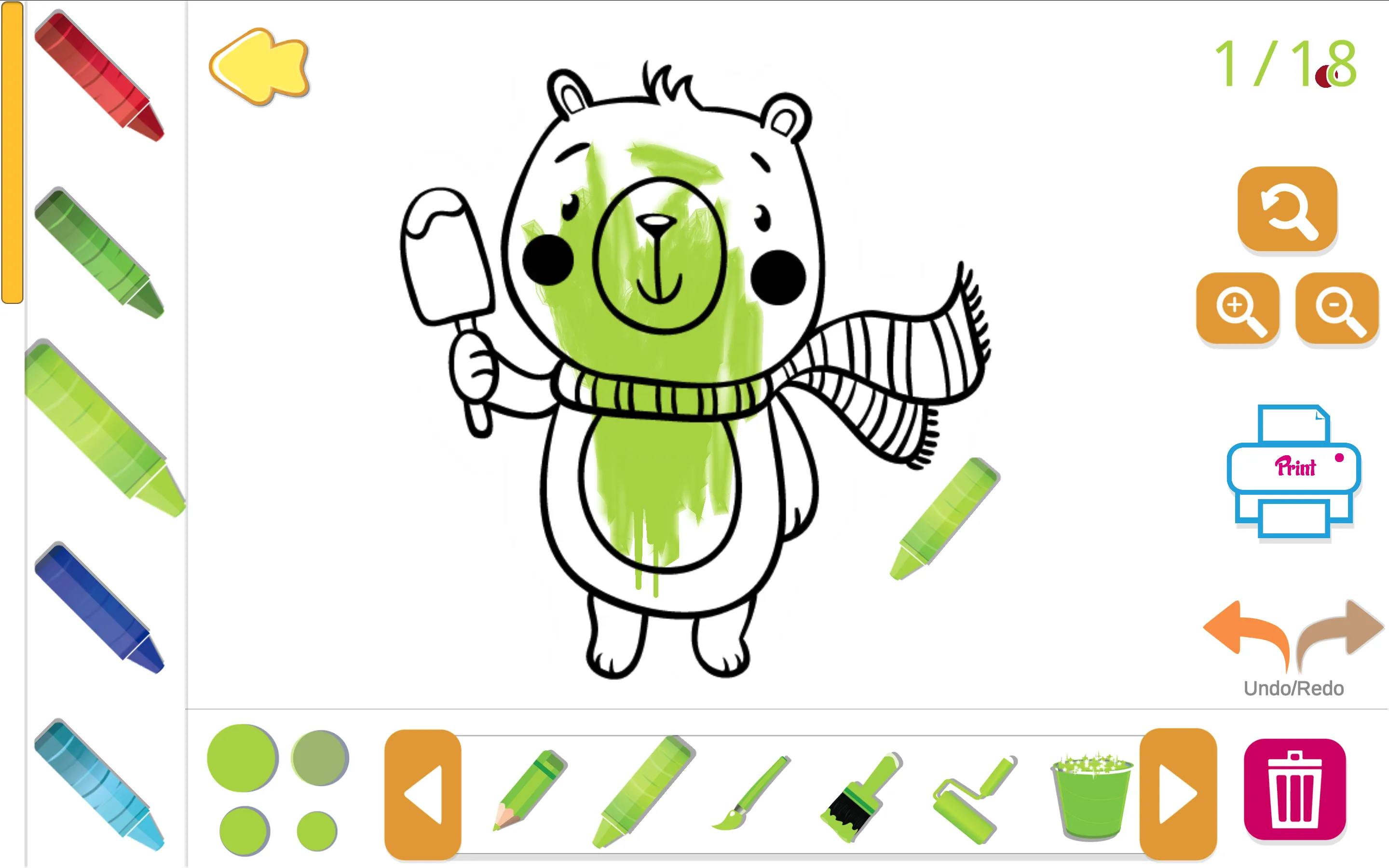
Workflow Advice: From Broad Tones to Delicate Details
When starting a fresh illustration, work from back to front. Fill in the background sky and ground plane first. Next, apply base colors to the main subject: the body of an elephant, the hull of a ship, or the dress of a princess. Finally, zoom in and use fine brush tips to tackle delicate facial features, eyes, jewelry, and trim.
If you accidentally tap the wrong color into a section, do not worry. The unlimited undo button lets you step backward with a single click, or you can simply select a new hue and fill the zone again. On touchscreen tablets and phones, drawing with an active stylus gives remarkable control over line weight, making it feel like an endless, mess-free coloring book in the palm of your hand.
Drawing & Coloring Studio Strategy and Player Q&A
How does the paint bucket fill tool work?
Clicking or tapping inside an outlined area fills that entire enclosed section with your active palette color, stopping automatically at black border lines.
Can you undo accidental color choices or stray strokes?
Yes. The undo arrow icon in the top toolbar reverses your most recent brush strokes or bucket fills, allowing you to experiment freely without permanently altering your artwork.
Can you start with a blank white page instead of a template?
Yes. The studio includes an open sketch mode that presents a clean blank canvas with customizable pencils, markers, and paintbrushes for freehand drawing.
Are there time limits, star ratings, or point scores?
No. Drawing & Coloring is completely pressure-free. There are no countdown clocks, score thresholds, or performance penalties, making it an ideal relaxing creative sandbox.